
VR has always been an incredible solo experience, but let’s be honest—sharing the "wow" moments is half the fun. Today, we are thrilled to announce the launch of MU (Multiuser), bringing Watch Parties directly into the DeoVR app.

Whether you're halfway across the world or just across town, you can now sync up and experience the best VR content simultaneously with your friends.
🚀 Getting Started: The Setup
Before you jump into a virtual room, make sure you’ve checked these boxes:
-
Update Your App: Ensure you have the latest DeoVR app installed from the Meta Store.
-
Log In: This is the big one. You must be logged into your DeoVR account. Accessing the app without authentication will prevent MU features from functioning.
How to Access Multiuser
-
Launch DeoVR.
-
Once authorized, look for the “Watch party” button on the bottom-right of your screen, right next to the navigation bar.
-
Click it to open the MU interface.
.webp)
.webp)
🏠 Room Management
Ready to host or join? Here is how you handle the logistics:
Creating a Room (The Host)
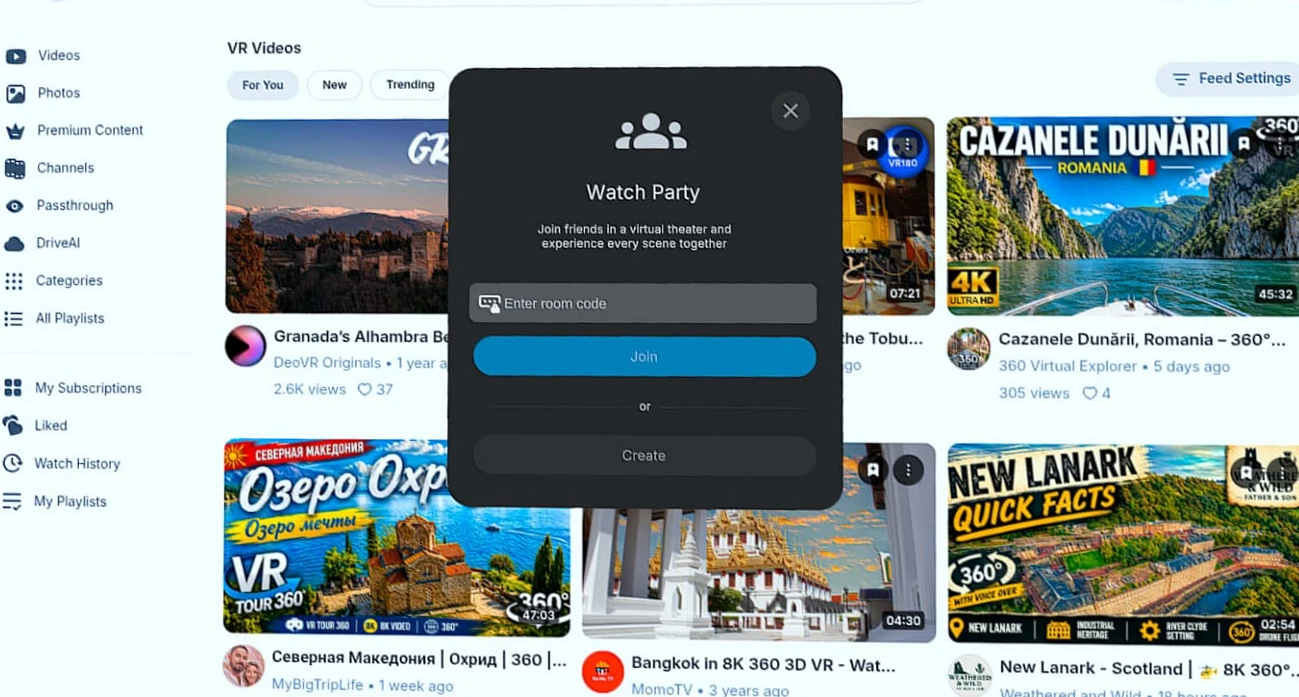
If you want to be the captain of the ship, click Create. This initializes the session, and you will automatically be designated as the Host.
Joining a Room (The Guest)
To join a friend, you’ll need their 6-digit room code. Enter the code in the input field, hit join, and you’ll be instantly transported into the Watch Party room.
🛠️ Host Powers & UI Tips
Being the host comes with a few perks (and responsibilities):
-
The "Wand" Feature: Want to point something out? Enable the “wand” button next to your nickname in the guest list. This allows guests to see your controller or hand movements in real-time.
-
Moderation: If someone is crashing the vibe, the Host can remove participants by clicking the X next to their name in the user list.
-
Toggle Interface: If the MU panel is blocking your view, simply click the Watch party button again to hide or show the right-side panel.
-
The Quick Reset: If your view feels off-center, press and hold the Oculus button on your controller for 5 seconds to reset the dome position.
.webp)
DeoVR is evolving, and we can’t wait to see how you use Watch Parties to connect. Grab your headset, call your friends, and we'll see you in the virtual front row!